01 / Get started
How to install
Use desktop Chrome. The extension works with public YouTube videos and Shorts; existing captions are not required.
From the Chrome Web Store
The Chrome Web Store link is not available here yet. If you have been given an extension ZIP, use the manual steps below.
- Open the extension’s Chrome Web Store listing in Chrome.
- Select Add to Chrome, review the permissions, and confirm with Add extension.
- Open Chrome’s Extensions menu (the puzzle icon) and pin the extension so it stays in your toolbar.
From a downloaded ZIP
- Download the extension ZIP provided to you and extract it into a folder you will keep on your computer.
- Type
chrome://extensionsinto Chrome’s address bar and press Enter. - Turn on Developer mode in the upper-right corner.
- Select Load unpacked and choose the extracted folder containing
manifest.json. Choose the folder, not the ZIP file. - Check that the extension is enabled. Open Chrome’s Extensions menu and pin it to your toolbar.
For a manual update, extract the new package into that same folder, then select the extension’s reload button on chrome://extensions. Refresh your open YouTube pages afterward.
 Open full-size image
On your screen
Load the extracted extension
- Turn on Developer mode. Chrome then shows the manual installation buttons.
- Select Load unpacked, then choose the extracted folder containing manifest.json.
Open the panel and sign in
- Open a public YouTube video or Short and select the extension’s toolbar icon. Its side panel opens beside the page.
- Open Account and sign in with the same email and password you use on this website.
- If you need an account, create one. Generation requires an active plan and available minutes; you can check these in Account or your dashboard.
- Return to Watch to generate subtitles. After installing or updating, refresh any YouTube tab that was already open.
The extension screenshots below use an example song and sample lyrics. Select an image to view it at full size.
02 / Watch
Generate subtitles
- Open your video and the extension’s Watch tab. Check that the video at the top of the panel is the one you want.
- Select Change beside the language pair. Choose the Video language, or use Auto detect when you are unsure. Choose your Translation language separately.
- Under Layers, choose Translation and, if wanted, Romanization (a reading in Latin letters, where available).
- Choose an AI model: Transcriber for language understanding and detail, or Transcriber Spark for speed. The website calls the latter Transcriber-Spark.
- Select Generate subtitles. Review the video, options, and minute-use notice, then choose Start generation. Choose Go back to change your settings.
- Follow the named progress stages. Subtitles appear on the video as they become ready. You can close the side panel while generation continues.
Auto chooses Transcriber or Transcriber Spark from the transcript.
Editing and interactive word cards become available once the track is complete. If your plan’s simultaneous-video slots are occupied, an accepted generation waits in the queue.
To try different languages, layers, or a model on a video with a completed track, choose Generate again above the transcript. Changing next-generation settings does not change an existing saved track.
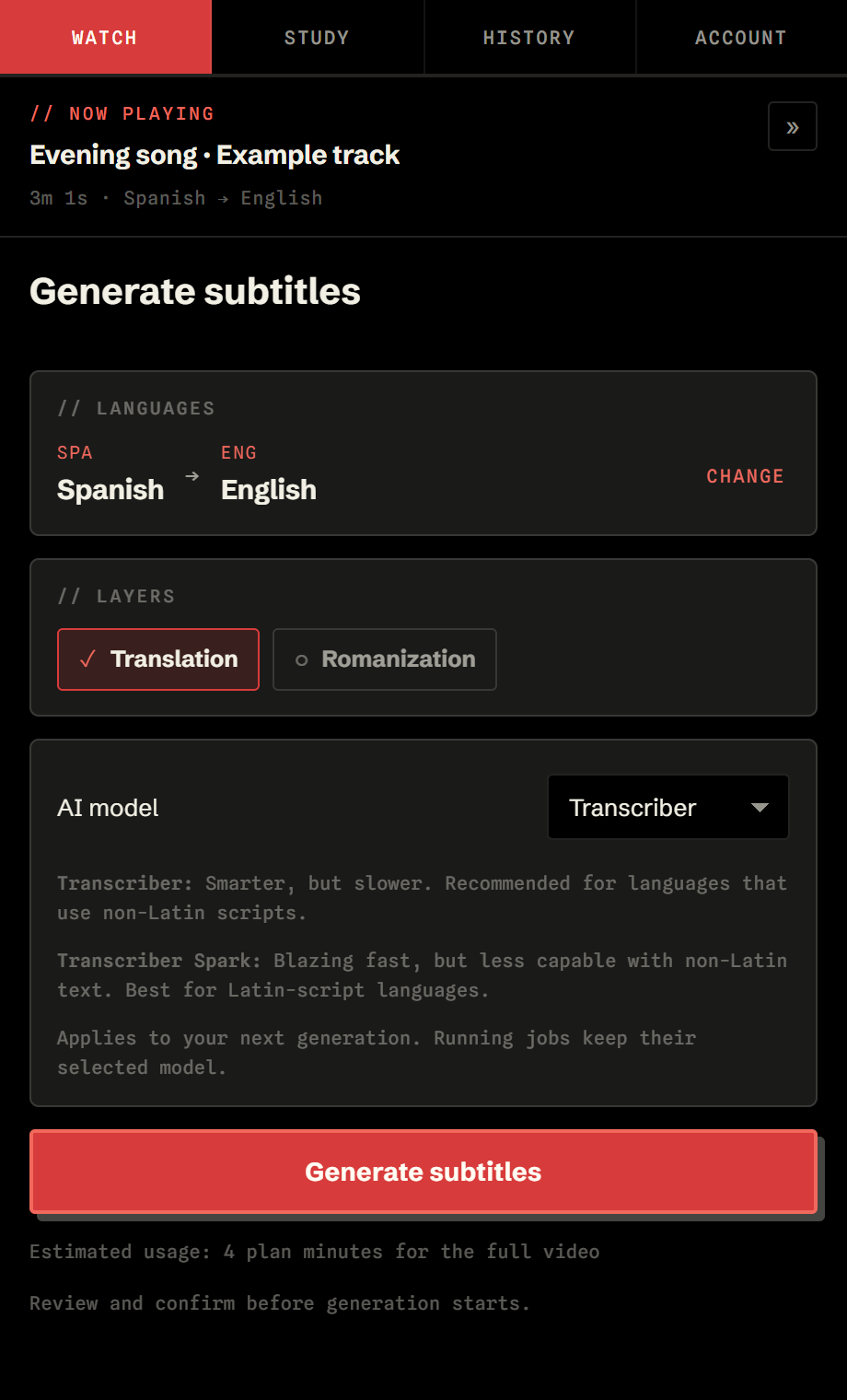 Open full-size image
On your screen
Set up your generation
- Use Change to choose the video and translation languages.
- Choose the layers you want. Romanization adds a reading in Latin letters where available.
- Pick Transcriber or Transcriber Spark for this generation.
- Generate subtitles opens a confirmation. Review it before choosing Start generation.
03 / Watch
Read the transcript
After generation, Watch shows a timed transcript beside the video. The current line is highlighted as the video plays.
- Use Search transcript to find a line.
- Select Jump on a line to seek the video to that point.
- Select Copy to copy the line’s text.
- Use Generate again or Lyric correction above search to open those tools. Back to transcript returns to the reading view.
Translations and pronunciation readings depend on the layers available in that generation. Choosing the same video and translation language does not produce a second-language translation.
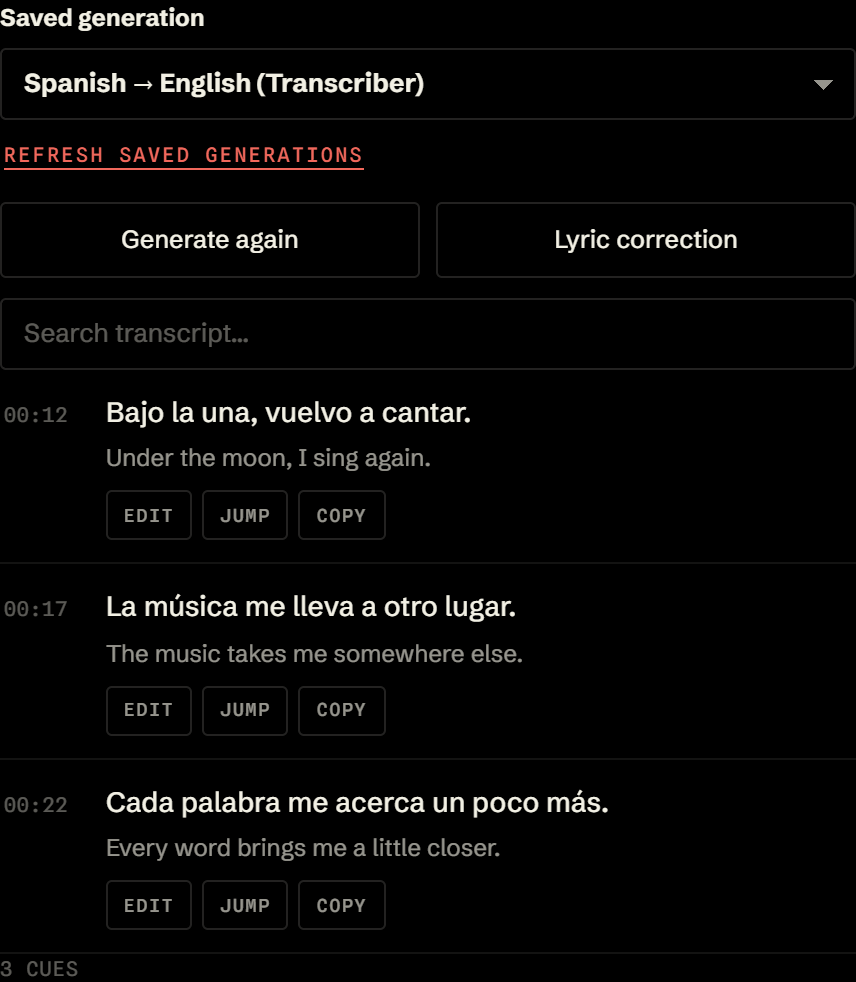 Open full-size image
On your screen
Find your way around Watch
- Saved generation switches between completed tracks for this video.
- Search transcript helps you find the line you want to read or correct.
- Edit corrects a word, Jump seeks to the line, and Copy copies its text.
04 / Make corrections
Replace full lyrics
Use this when you have the complete lyrics for a song and want to replace its generated transcript. Start with a completed generation.
- In Watch, select the track in Saved generation, then choose Lyric correction.
- Paste the complete lyrics for this exact version of the song, in order. Include every repeated verse and chorus. Remove section tags such as
[Verse],[Chorus], and[Bridge]; paste only the words that are sung. - Keep the text within the displayed 25,000-character limit. Choose Continue and review the full-track replacement notice.
- Select Replace entire track to confirm. The compact status strip shows progress; choose View progress for the stages or Cancel replacement while it is running.
- When replacement finishes, play several lines to check the wording and timing. Translations, enabled pronunciation readings, and word data are rebuilt with the corrected text.
Full lyrics correction uses Transcriber, regardless of the generation’s model, and does not use additional generated-video minutes. Incomplete or wrong lyrics can put words at the wrong times. If needed, use Generate again to create fresh subtitles; regeneration can use plan minutes.
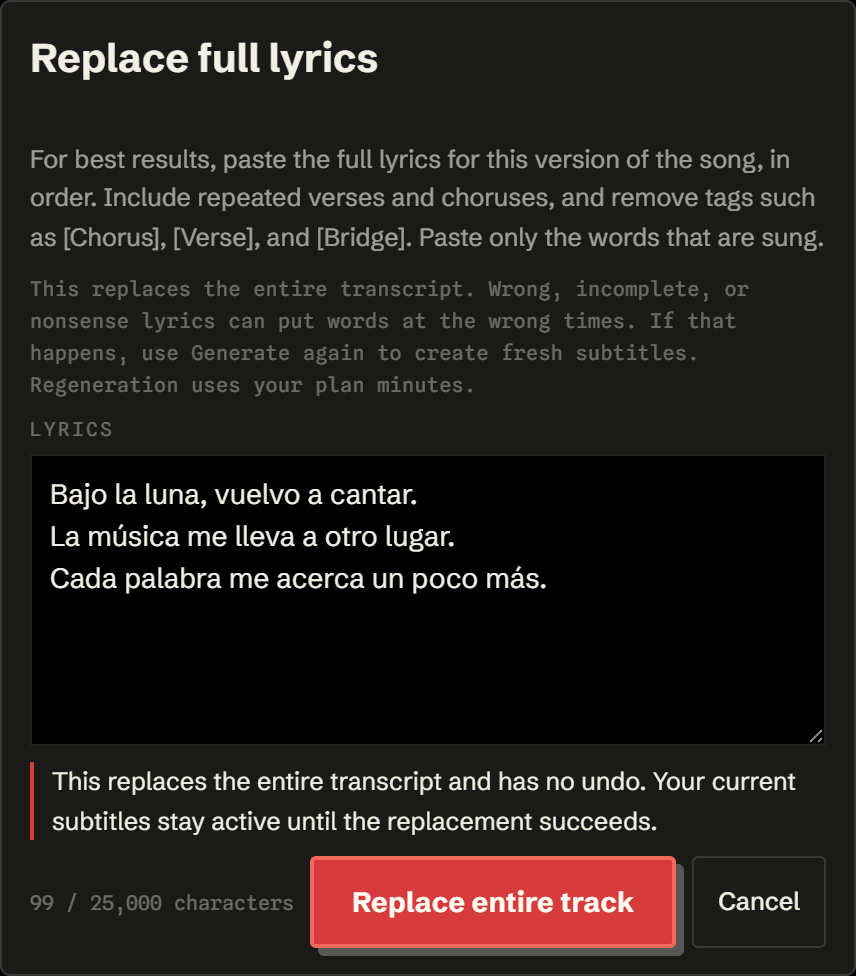 Open full-size image
On your screen
Review the full replacement
- Paste the complete lyrics in order, including repeated verses. Choose Continue below the text.
- After Continue, this notice appears. Check it before selecting Replace entire track; a completed replacement has no undo.
05 / Make corrections
Fix a single word
For a small mistake, edit one word in a completed transcript instead of replacing the full lyrics.
- Find the line in Watch, using transcript search if needed.
- Select Edit on that line, then select the word you want to correct.
- Enter the replacement in Correct word and choose Save correction. Use Cancel to discard an unsaved edit.
- Wait for the update, then check the line. Select Done to leave word selection.
The correction keeps the line’s timing and refreshes its translation, enabled pronunciation readings, and word cards. It does not use additional generated-video minutes. Wait for generation or a lyrics replacement to finish before making another correction.
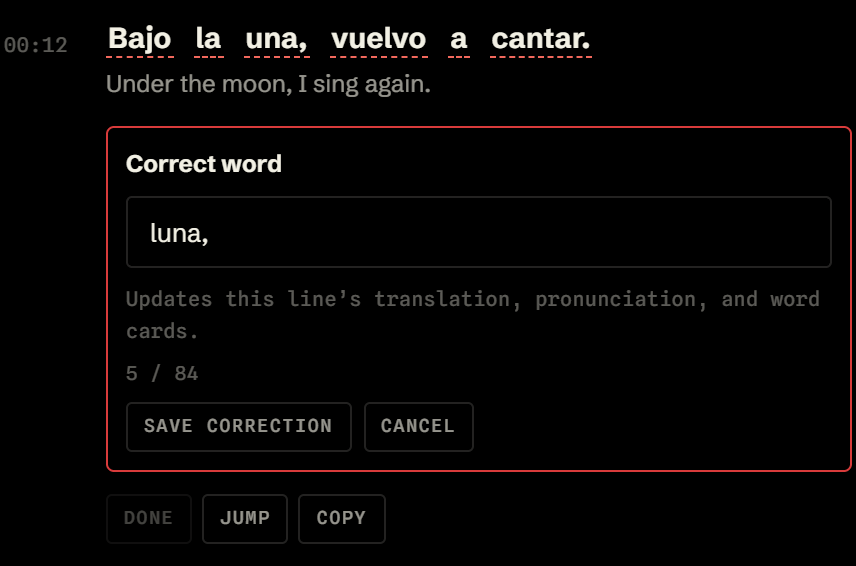 Open full-size image
On your screen
Correct just one word
- Select Edit on a line, then select the mistaken word. Here, una should be luna.
- Type the corrected word in Correct word, keeping any punctuation you need.
- Save correction updates the line and its word data. Review the result, then select Done.
06 / Learn in context
Explore word cards
- Play a completed track and move over a word in the subtitles on the video to preview the available word information.
- Click the word to pin its detail card. New details may take a moment to load the first time you request them.
- Read the meaning, pronunciation, and usage information available for that word in its sentence. Click another word to explore it.
In Study → Active recall, enable Pause video on word hover if you want time to read. Word cards explain the current video’s words; saved vocabulary and spaced-repetition review are not currently available.
07 / Study
Display & study tools
Place and style the subtitles
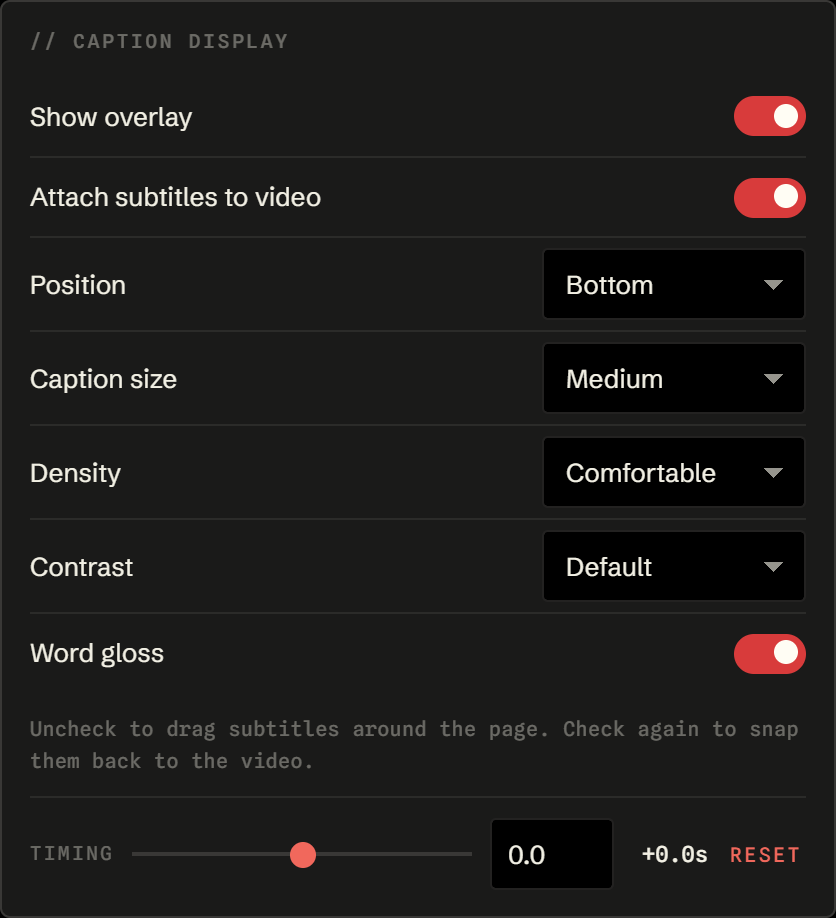
Open Study → Caption display. Use Show overlay to show or hide the subtitles on the video. Choose Bottom, Top, or Compact under Position, then adjust Caption size, Density, and Contrast. Word gloss controls available short word meanings.
To move subtitles freely, uncheck Attach subtitles to video and drag the Move subtitles handle. You can also focus the handle and use the arrow keys; hold Shift for larger steps. Check attachment again to return to the selected position. The free position lasts while the overlay is open.
Adjust timing
If the subtitles appear too early or late, adjust Timing with the slider or seconds field. The range is −10 to +10 seconds in 0.1-second steps. Use Reset to return to zero. This changes playback display timing, not the words or the stored cue timings.
 Open full-size image
On your screen
Place captions and adjust timing
- Uncheck Attach subtitles to video to move them freely. Check it again to return to your chosen position.
- Choose a position, then adjust the size, spacing, and contrast to suit the video.
- Use Timing to shift subtitle playback. Reset returns the offset to zero.
Practice listening before reading
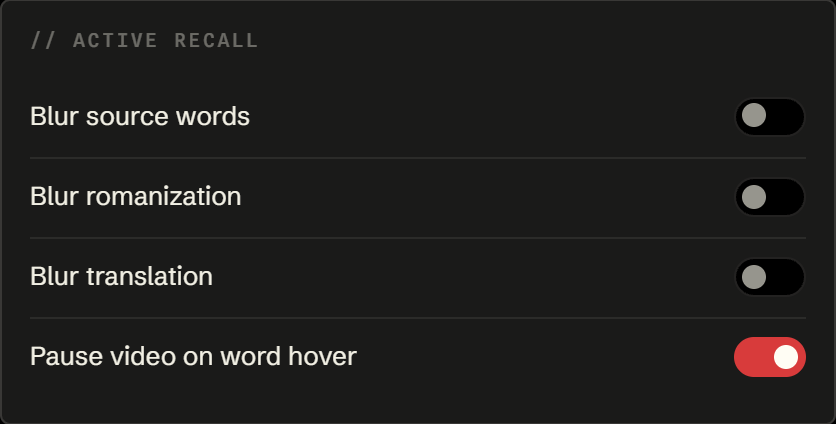
Under Active recall, turn on Blur source words, Blur romanization, or Blur translation. Hover or focus the part you want to reveal when you need a hint. Source-word reveals include that word’s reading when available; the full reading and translation can be revealed separately.
Enable Pause video on word hover to pause while inspecting a word. These are display preferences; they do not start another generation.
 Open full-size image
On your screen
Listen first, reveal when ready
- Turn on a blur option to hide that layer. Hover or focus it when you want a hint.
- Pause on word hover gives you time to read a word card while the video waits.
Reset this device
Study → This device → Clear local state resets local settings and remembered tracks and signs the extension out. It does not delete your account’s server-side jobs or cancel your subscription. Sign in again to access retained generations.
08 / Keep watching
Keyboard shortcuts
Enable Study → Keyboard shortcuts → Shortcuts enabled. Use these while the YouTube page has focus. Shortcuts do not run while you are typing in an input or editing text. On Mac, Alt is the Option key.
| Shortcut | Action |
|---|---|
| Alt + Shift + R | Replay the current line |
| Alt + Shift + ← | Jump to the previous line |
| Alt + Shift + → | Jump to the next line |
| Alt + Shift + T | Show or hide translation |
| Alt + Shift + B | Blur or reveal source words |
| Alt + Shift + A | Toggle pause on word hover |
| Alt + Shift + X | Focus the side-panel transcript |
| Alt + Shift + C | Copy the current line |
09 / Come back to a video
Saved generations & history
Use Saved generation at the top of the transcript to switch between completed tracks for the current video. The language pair and model help identify each one. Switching updates the transcript and video subtitles without generating again.
- Refresh saved generations checks for the latest available tracks. Switching and deletion wait while generation or a lyrics change is active.
- Delete selected generation in the dropdown removes that generation and its stored track after confirmation. It switches to another available track, or returns to setup if none remain.
- The History tab lists your latest 25 jobs, grouped into Videos and Shorts. Use Open video to return to YouTube. Available completed generations are recovered for that video.
- For a failed job, open the video, review Watch settings, and choose Generate. The failed job’s options are not automatically restored.
- Use Cancel generation on a queued or running job when you want to stop it. Read the minute-use notice before confirming.
Completed tracks are retained for 30 days. Reopening a retained track uses no new generation minutes. Deleting a completed track does not refund used minutes; creating a new generation can use minutes again.
You can also delete individual jobs or clear all jobs from the website dashboard. If a deleted track is still visible on an already-open YouTube page, refresh the page.
10 / Your account
Account & usage
The extension’s Account tab shows your sign-in status, plan, used and reserved minutes, remaining balance, and reset date. Reserved minutes belong to jobs that have not finished yet.
Open the website dashboard for billing, connected extension installs, and recent jobs. The website may need a separate sign-in; use the same account as the extension.
- Refresh status updates the dashboard snapshot.
- Manage billing or Manage or cancel subscription opens the billing portal for payment and subscription changes.
- A job’s Support ID opens its status, stages, timings, language pair, and available failure details. Include this ID when reporting a generation issue.
- Sign out disconnects the extension session. Signing out or uninstalling does not cancel your subscription.
- Delete account permanently removes account data and cancels an active subscription. Read the dashboard’s confirmation carefully before proceeding.
11 / Get help
Troubleshooting
- The panel says “No video here”
- Switch to a public YouTube video or Short in the same window. After installing or updating, refresh the page and reopen the panel.
- I cannot start generation
- Check Account for your sign-in, active plan, and remaining minutes. Wait for an available queue slot if your plan’s limit is reached, and follow any message shown in Watch.
- I cannot see subtitles
- Check Study → Show overlay, play a part of the video with speech, and confirm the selected saved generation. Use Refresh saved generations if needed.
- The words or timing are wrong
- Try a single-word correction, full lyrics replacement, or the Timing control. Check the result against the video. For fresh subtitles, use Generate again and review the minute-use notice.
- Something failed or looks broken
- Open the job’s Support ID in your dashboard. Note the failure code, video, language pair, what you expected, and steps to reproduce the problem. Contact support with those details; avoid sending passwords or full transcripts.